 Chronophoto
Chronophoto
Chronophoto
Chronophoto reads the real date of every photo and sorts everything for you: phone, camera, USB stick, hard drive. Easy, even if you are not comfortable with computers.
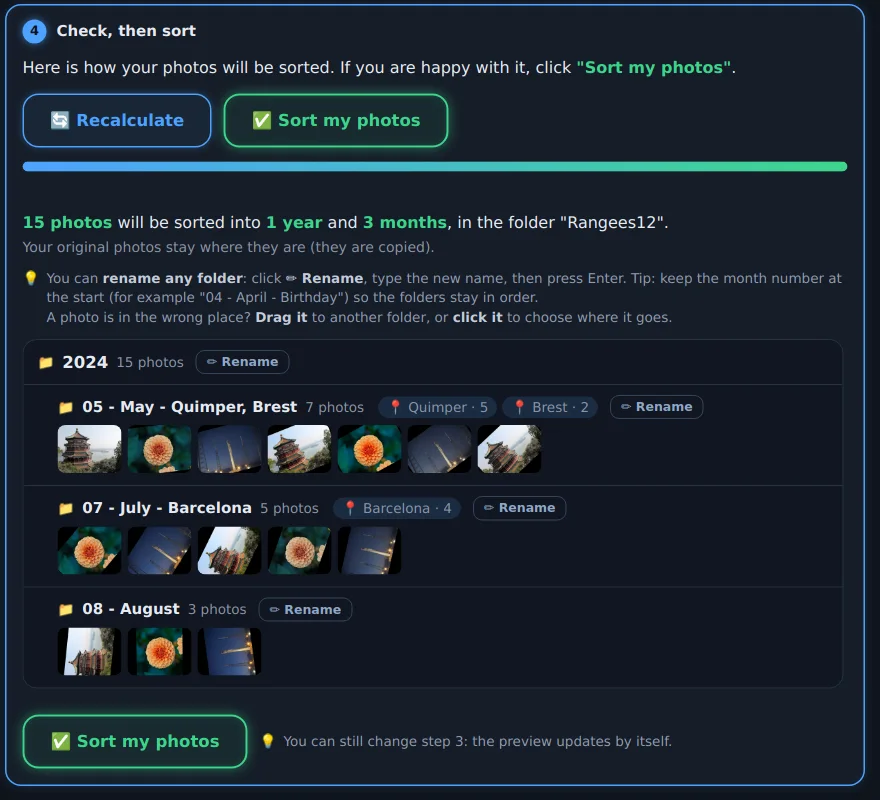
Just follow the numbers. Nothing is changed until you have seen the result.
One click on “All my folders”, or pick a USB stick, a drive or a memory card.
Choose (or create) the folder for your sorted photos.
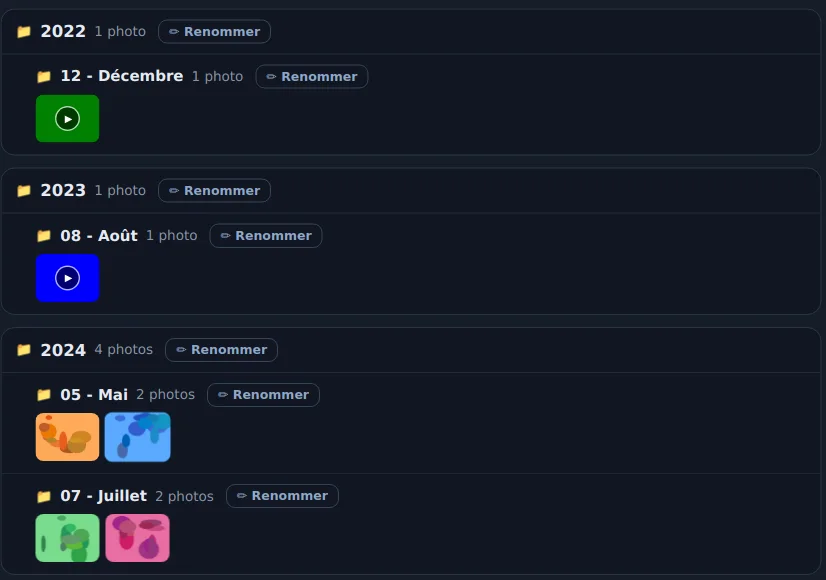
By year, or by year and month, with the place name if you like.
You see the result before confirming. A mistake? One button undoes everything.
Made for people with thousands of scattered photos who just want to find their way around them.
Chronophoto reads the shooting date stored inside the photo, not just the file date.
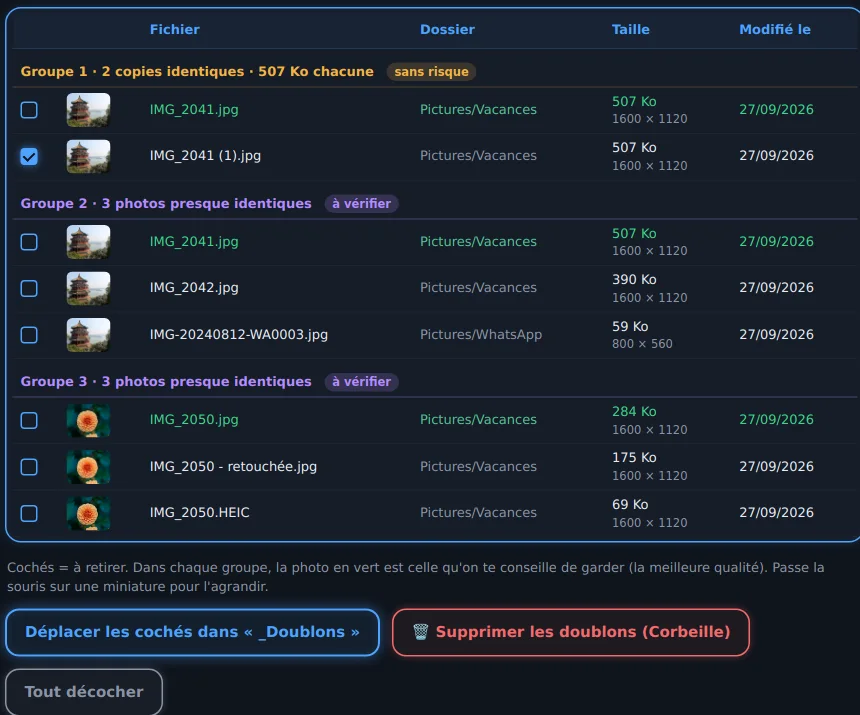
Find duplicate photos, even with a different name or size, or sent through WhatsApp.
Plug in your SD card, USB stick or camera: Chronophoto offers to sort its photos in one click. The photos also stay on the card.

Made a mistake? One button puts everything back, even the next day.
Rename a folder (“07 - July - Holiday”) or drag a photo to another month.
Choose the look and enlarge the text for comfortable reading.
Separate screenshots, WhatsApp images, phone photos and camera photos.
The app follows your computer's language.
Chronophoto tells you when a new version is out. Your licence is kept.
Try it free for 14 days with every feature. If you like it, buy your licence.
No. By default Chronophoto copies your photos into the new folder: the originals do not move. And if you don't like the result, the “Undo this sort” button removes everything.
Never. Everything happens on your computer, even finding city names. Chronophoto only checks whether a new version exists (and you can turn that off).
This is a common message for software from small publishers. Click “More info”, then “Run anyway”. Chronophoto contains no ads and no hidden software.
After buying, open Chronophoto, click the “Trial” button at the top right and send me your computer's code. I e-mail your licence key back, usually the same day.
No: e-mail me the code of your new computer and I will move your licence.
Yes, on macOS 11 (Big Sur) or later. To pick the right file, click the Apple menu, then “About This Mac”: “Chip Apple M1, M2, M3, M4…” or “Processor … Intel”. The first time, your Mac asks for your permission: open System Settings › Privacy & Security, then click “Open Anyway”.
You can try everything free for 14 days before buying. If you have any problem, e-mail me and we will find a solution.